
GBA.emu (GBA Emulator)
Robert BrogliaArcade
4.3403.00 Reviews
- Version
- 1.5.85
- Installs
- 50.00K
- Age Rating
- Everyone
Screenshots
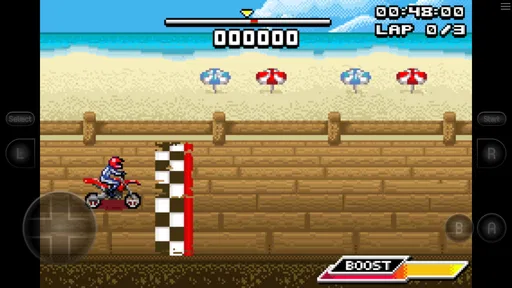
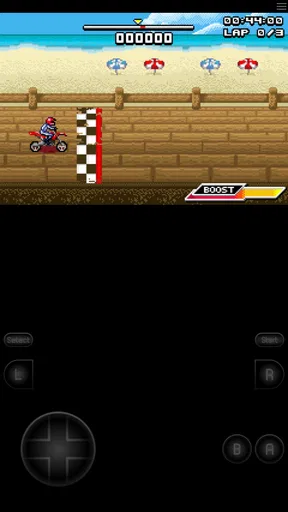
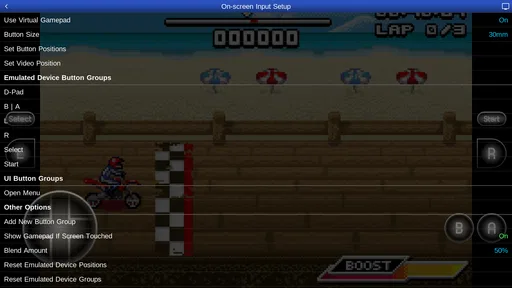
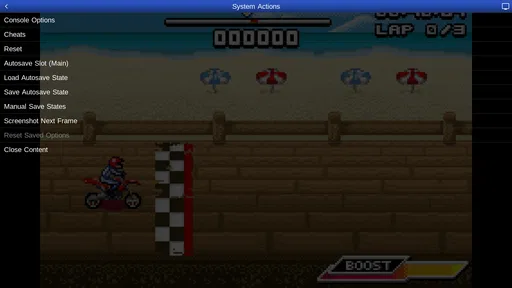
Our Review of GBA.emu (GBA Emulator)
 Analysis by Appyee
Returning to a handheld game on a phone sounds simple, but the feel depends on more than whether a title opens. I found that GBA.emu works best when I treat it as a flexible way to revisit games I already know, rather than a modern arcade game with built-in goals or unlocks. The enjoyment comes from choosing a game, setting up controls that suit the moment, and deciding how much help I want from save states.
Small goals make short sessions work
Because this is an emulator, it does not supply a campaign, daily challenges, or unlock track of its own. Your early goals come from the GBA game you load: clearing an opening stage, reaching a checkpoint, or learning a familiar level again. That distinction matters if you expect the app itself to provide a steady stream of new objectives. It is a tool for playing existing games, and the game you choose supplies the structure.
For a quick break, I would pick a title with stages or natural stopping points, rather than beginning a long section when I know I have only a few minutes. On-screen controls make it possible to start without carrying extra gear, while a Bluetooth controller can be a better fit for longer sessions or games that ask for precise movement. Either way, I would test the layout in a low-pressure area before relying on it during a difficult stretch.
Progress comes from the game, not the emulator
Save states are the most useful way this app changes the rhythm of older games. They let me preserve a moment without waiting for an in-game save point, which can make a demanding section easier to approach in short sittings. They also change the character of the challenge: if I save before every risky move, setbacks matter less. I prefer to use them as a practical pause button, saving when I need to stop, instead of turning every obstacle into a repeated near-perfect attempt.
That choice is especially helpful when returning to a game after a busy day. I can leave at a point that suits my schedule and resume later, rather than planning a session around a particular save location. The trade-off is that emulator saves and the game’s own progress are not the same habit, so I would make sure I understand which kind of save I am using before trusting it as my only record of a long run.
Challenge and pacing depend on your setup
There is no single difficulty curve across GBA.emu; the original game sets that. The phone adds its own factors, though. Touch controls can feel less exact than buttons, especially in action games that demand quick directional changes. A physical controller may make those moments more comfortable, but it also means carrying and connecting another device. For a slower, turn-based game, the touchscreen may be perfectly reasonable and easier to use on the go.
Scaling options give you room to make the picture suit your screen, but I would avoid changing several settings at once when a game looks or feels wrong. Adjust one thing, try it for a few minutes, and keep the version that makes text and action comfortable to follow. A larger image can be easier to see, while a different presentation may preserve the look you remember; the right choice depends on the device and the game, not a universal “best” setting.
What keeps me coming back—and what does not
The app does not create retention pressure with streaks, timers, or reward prompts. That is a plus if you want to play at your own pace, but it also means the motivation has to come from the games you bring to it. If you enjoy revisiting a favorite or exploring something you missed, that can be plenty. If you rely on an app to hand you fresh challenges and a visible progression path, this is not the right kind of arcade experience.
Compared with a dedicated handheld, a phone is convenient because the games and controls can travel with a device you already use. The compromise is physical feel: touch buttons cover part of the display, and a controller improves input at the cost of extra equipment. Compared with other emulator-style options, the practical question is less about built-in progression and more about whether this app’s straightforward setup and adjustment options suit the way you want to play. I would choose a dedicated handheld when comfort and physical buttons matter most, and this app when portability and flexible sessions matter more.
It also helps to sort out your game files before settling in. GBA.emu is an emulator, not a collection of games; you need game files that you have the right to use. Keeping them in an easy-to-find folder makes returning to a title less fiddly, especially if you switch between games. I would use clear filenames and avoid moving files around mid-session, so it is easy to locate the same game again. The app cannot make an unfamiliar game compelling by itself, so picking something you genuinely want to play is part of the setup.
For a realistic everyday use, imagine having a short wait between errands. I would open a familiar game, play one stage or a few turns, then use a save state if I need to put the phone away before the game offers a natural stopping point. Later, I could continue with touch controls if I am still out, or connect a controller at home for a longer session. That flexibility is more valuable than a promise of constant new content, but it depends on being comfortable with the controls and remembering how I saved.
Robert Broglia’s arcade game utility has been around since June 21, 2012, and its current version is 1.5.85. It costs $4.99, carries an Everyone age rating, and has a 4.3 average from around 1.7 thousand ratings, with over 50 thousand installs. I see the price as a purchase for the emulator itself, not for a library of games. That distinction is worth keeping in mind before buying: the value is strongest if you already have games you want to revisit and expect to use the settings and save tools over time.
For people choosing between phone play and other ways to revisit GBA games, the deciding questions are practical. Do you want a pocketable setup, or do you want the feel of real buttons? Are your preferred games comfortable with touch input? Do you enjoy configuring a display, or would you rather use a device that needs little adjustment? I would skip this option if I wanted a ready-made game catalog, automatic challenges, or a console-like experience without file setup. I would consider it if I value control over when and how I play, and I am willing to spend a little time making the setup comfortable.
My main caution is that flexibility can become tinkering. It is easy to keep changing display or control settings instead of playing, and save states can make a game feel less demanding if used constantly. I recommend starting with the default arrangement, loading a game you already know, and changing settings only when you can name the problem you are trying to solve. That small habit keeps the app focused on the game rather than turning every session into a configuration project.
Setting Up Your Virtual Console
First things first, getting GBA.emu up and running is a breeze. You'll find it available for both Android and iOS, making it super convenient for almost any user. After downloading, you're just a few taps away from setting up your very own virtual GBA console. It supports a broad range of GBA games, so whatever your favorite was back in the day, chances are, it’s compatible.
Once you launch the app, you’re greeted with a straightforward interface. No unnecessary fluff, just a neat and tidy space to load up your ROMs. Remember, while the emulator itself is legal, make sure you own the physical copies of the games you’re playing, as downloading ROMs you don't own is a no-go.
Diving into the Features
Now, let’s talk features, because GBA.emu doesn’t just stop at playing your favorite games. It offers support for both physical and on-screen controls. If you're feeling extra nostalgic, you can connect a Bluetooth controller and relive those handheld days with a more tactile experience.
The app also comes with save states, which is a lifesaver for those tricky spots in games. You can save your progress anytime, anywhere, and pick up right where you left off. No more worrying about finding a save point in the game!
Graphically, GBA.emu offers multiple scaling options to make sure everything looks just right on your device. You can tweak the settings to get the perfect balance between performance and visuals. And hey, if you’re into tinkering, the app lets you fiddle with many more settings to optimize your gameplay experience.
Performance and Compatibility
In terms of performance, the emulator runs smoothly on most devices. Of course, older smartphones might struggle a bit with more demanding games, but for the most part, it offers a seamless experience. The app is well-optimized, and there’s minimal lag, even when playing graphically intense titles.
Compatibility-wise, it supports a wide range of GBA games, making it a versatile choice for any retro gaming enthusiast. I tried out a slew of different titles, and each one ran without a hitch. That said, always keep your app updated to ensure the best compatibility and performance.
Taking the Nostalgia Road
Using GBA.emu feels like stepping into a time machine. The soundtracks, the graphics, the gameplay—it all comes rushing back. Whether you were a Pokémon master, a Mario Kart champion, or a fan of those lesser-known gems, this emulator opens up the door to countless hours of fun.
It’s more than just a tool; it’s a bridge to the past. And the best part? You can carry this slice of gaming history right in your pocket. No more blowing into cartridges or hunting down AA batteries. Just open the app, load your game, and dive back into the adventure.
Final Thoughts
If you’re a fan of the Game Boy Advance era, GBA.emu is a must-have. It’s easy to use, packed with features, and offers an incredible way to relive those childhood memories. Whether you’re replaying old favorites or discovering titles you missed the first time around, this emulator is sure to hit all the right notes.
So, go ahead, give GBA.emu a whirl. Load up your favorite game, and prepare to lose yourself in a wave of nostalgia. Trust me, you won't regret it!
Verdict
Strengths of GBA.emu (GBA Emulator)
- Smooth performance on most devices.
- Highly customizable settings.
- Supports cheat codes and saves.
- No ads for distraction-free play.
- Open-source with regular updates.
Limitations of GBA.emu (GBA Emulator)
- Requires BIOS file to start.
- No built-in game library.
- Interface could be more intuitive.
- Limited controller support.
- Occasional minor bugs.
Other Releases by Robert Broglia
View All
Snes9x EX+
Arcade4.2

MD.emu (Genesis Emulator)
Arcade4.2

NES.emu (NES Emulator)
Arcade4.3

NEO.emu (Arcade Emulator)
Arcade3.4
Similar Picks in This Category
View All
Subway Surfers
SYBO Games4.6

Stickman Party 234 MiniGames
PlayMax Game Studio4.6

Subway Princess Runner
Ivy4.4

Temple Run
Imangi Studios4.2

Zombie Tsunami
Mobigame SAS4.6

Stack Ball - Crash Platforms
CASUAL AZUR GAMES4.5
Frequently Asked Questions
What is GBA.emu, and how does it work?
GBA.emu is a Game Boy Advance emulator for Android and iOS devices. It allows users to play GBA games by replicating the hardware of the original console on your device. You simply load ROM files into the emulator, which then processes the data to recreate the gameplay experience.
Is GBA.emu legal to use?
Using GBA.emu is legal as long as you own the original copies of the games you're emulating. Downloading or sharing ROMs of games you do not own is illegal in many jurisdictions. Always ensure you have legal rights to the content you are emulating.
What features does GBA.emu offer?
GBA.emu offers a range of features including customizable controls, cheat code support, fast forward, and save states. It also supports various ROM formats and external controllers, providing a tailored gaming experience that closely resembles playing on the original hardware.
What are the system requirements for GBA.emu?
GBA.emu requires a device running Android 2.3 or later, or iOS with a compatible third-party app store. It doesn't demand high-end hardware, but a relatively modern device is recommended for optimal performance and smooth gameplay.
How can I load games onto GBA.emu?
To load games, you must first transfer the GBA ROM files to your device. Once you have the ROMs, open GBA.emu and navigate to the directory where they are stored. Select the ROM file you wish to play, and it will load within the emulator, allowing you to start gaming immediately.
Play our best games!


